How to Install a Trade't Indicator in MetaTrader 5
Complete guide to installing and configuring any Trade't indicator in MT5 - from file download to license activation.
2024-04-15This tutorial is for you if you have purchased one of our indicators directly from our website or one of our affiliates. If you are on this page, it means you already have the ZIP file delivered to you and have licenses shared by our team. If it is not the case, don't hesitate to contact us.
Step 1: Download the Files
- Download the ZIP file sent to you.
- Locate the ZIP file on your computer and extract it.
Step 2: Move the Files to MT5
- Open your MetaTrader 5 (MT5) platform.
- Go to File -> Open Data Folder.
- Navigate to MQL5 -> Indicators.
- Create a folder for your indicator and copy the extracted files into it.
Step 3: Allow the Required URL
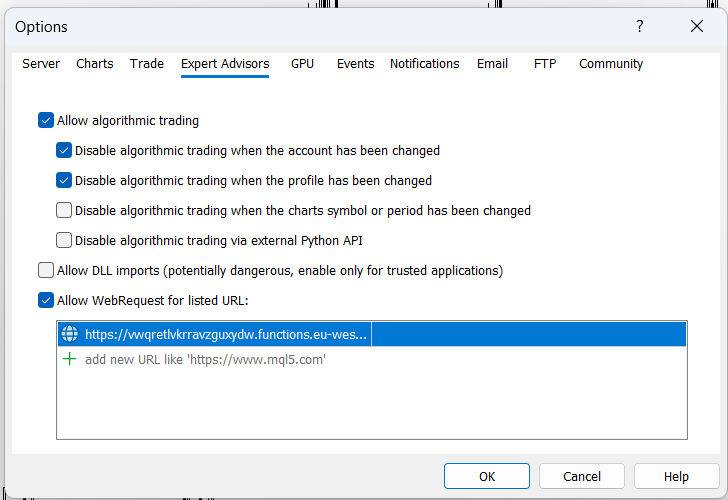
- In MT5, go to Tools -> Options (or press
Ctrl+O). - Go to the Expert Advisors tab.
- Add the following URL to the list of allowed URLs:
https://vwqretlvkrravzguxydw.functions.eu-west-2.nhost.run/v1
Step 4: Attach the Indicator to a Chart
This consists of 2 steps (we are working hard to make it simpler).
STEP 1 - Run the License File
- Ensure that Algo Trading is enabled. Click the Algo Trading button on the top toolbar so that it is highlighted.
- In the Navigator window (usually on the left side), expand the Indicators section.
- Find License.ex5 in the list.
- Drag and drop it onto your desired chart.
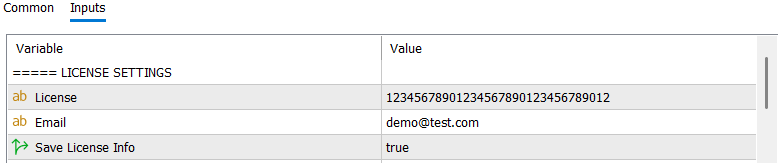
- The Inputs window will pop up asking for your email and license.
- Check that you have the license verified in the Experts Tab.
STEP 2 - Add the Indicator
- Find Indicator.ex5 in the Navigator list.
- Drag and drop it onto your desired chart.
- The Inputs window will pop up asking for your email and license.
Step 5: Initial Setup
- In the Inputs window, enter your email and license information.
- You will receive the license via email.
- Check the option to save your email and license if you want to avoid entering them again in the future.
- Click OK to confirm.
Step 6: Verify the Setup
- If everything is set up correctly, a popup will appear informing you that the activation is done.
- Ensure the indicator is running correctly on your chart. You should see a blue icon in the top right corner of the chart, indicating it is active.
Troubleshooting
If the indicator is not loading, the caching mechanism of MetaTrader sometimes does not work correctly. Before you retry:
- Right-click on your chart.
- Navigate to Indicators and remove the indicator.
- Then repeat STEP 1 and STEP 2 from the setup above.
For support, reach us on Telegram or visit our contact page.