How to Install a Trade't Tool (Direct Purchase / License Activation)
Step-by-step guide for installing a Trade't tool purchased directly, including license activation and the required URL allowlist setting.
2024-03-20Overview
This tutorial is for you if you have purchased one of our tools directly from our website or one of our affiliates. If you are on this page, it means you already have the ZIP file delivered to you and have licenses shared by our team. If it is not the case, don't hesitate to contact us.
Step 1: Receive Your Files
After purchase, you'll receive:
- The
.ex5tool file - A license key (usually a string like
XXXX-XXXX-XXXX-XXXX) - A download link (if not already provided)
Copy the .ex5 file to your MT5 Experts folder:
C:\Users\YourName\AppData\Roaming\MetaQuotes\Terminal\[TerminalID]\MQL5\Experts\
You can open this folder quickly from MT5: File -> Open Data Folder, then navigate to MQL5\Experts\.
Step 2: Allow the License URL in MT5
Trade't tools connect to our license server to validate your key. You must whitelist our server URL in MT5, otherwise the tool cannot authenticate.
To add the URL:
- In MT5: Tools -> Options -> Expert Advisors tab
- Check "Allow WebRequest for listed URL"
- Add the following URL:
https://vwqretlvkrravzguxydw.functions.eu-west-2.nhost.run/v1
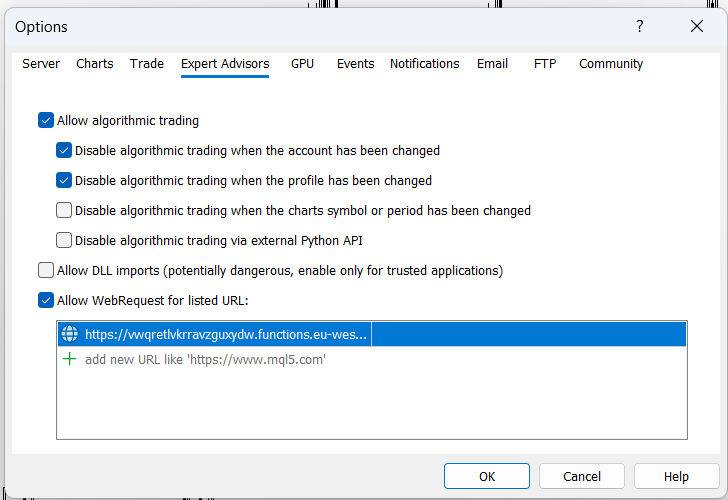
- Click OK
Important: Without this URL in the allowlist, the tool will show a license error and will not trade.
Step 3: Restart MT5
After adding the URL, restart MetaTrader 5 to ensure the settings take effect.
Step 4: Attach the Tool to a Chart
- In the Navigator (Ctrl+N), find your tool under Frameworks
- If it doesn't appear, right-click the Navigator and Refresh
- Drag the tool onto your chart
- In the Inputs tab, enter your email and license key in the corresponding input fields
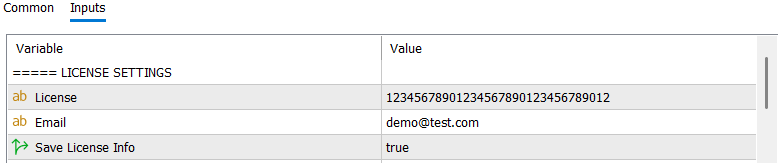
- Make sure "Allow live trading" is checked in the Common tab
- Click OK
Step 5: Verify Activation
After attaching the tool:
- Check the Experts tab in the terminal (bottom panel)
- You should see a message like:
License activated successfullyor similar - If you see a license error, double-check:
- The URL is correctly added (Step 2)
- Your license key is entered exactly as provided (no extra spaces)
- MT5 was restarted after adding the URL
Step 6: Enable AutoTrading
Make sure the AutoTrading button in the top toolbar is green (enabled). Without this, no tool will execute.
License Limits
- Licenses are tied to your MT5 Account Number, not your device
- Most licenses allow 1-2 live accounts simultaneously
- For additional accounts, contact us on Telegram
For any issues, reach us directly on Telegram.
Risk Reminder
Trade't tools are software frameworks for research and educational use. They do not provide financial advice and do not guarantee future performance. Please review our Risk Disclosure and Terms before live deployment.